Learn how to automate PDF invoices and certificates using Python, generate professional documents in bulk, and save time on repetitive business tasks

ntroduction
Generating invoices and certificates manually can be time-consuming, especially when a business or training institution handles dozens or hundreds of documents every month. Creating each document individually increases the risk of errors, inconsistent formatting, and misplaced records.
Automation offers a more efficient solution. With Python, you can automatically generate professional PDF invoices and certificates using information stored in a spreadsheet, database, or web form.
In this tutorial, you will learn how automated PDF generation works, which tools you need, and how to build a simple Python program that generates PDF documents from structured data.
What Is Automated PDF Generation?
Automated PDF generation is the process of creating PDF documents programmatically using data and predefined templates.
Instead of manually typing customer details into every invoice or entering student information into individual certificates, you create a reusable template and allow a program to populate the required information automatically.
For example, a training institution can use automation to generate certificates containing each student's name, course title, completion date, and certificate number. Similarly, a business can produce invoices containing customer details, purchased products, quantities, prices, and payment information.
The same approach can be applied to receipts, quotations, reports, delivery notes, and other business documents.
Why Automate PDF Invoices and Certificates?
Automating document generation provides several practical benefits.
1. Save Time
A document that takes several minutes to prepare manually can be generated in seconds once the automation system is configured. This becomes particularly valuable when processing large numbers of documents.
2. Reduce Human Errors
Automated systems retrieve information directly from structured data sources. This reduces common mistakes such as misspelled names, incorrect invoice numbers, and inconsistent dates. However, the quality of the output still depends on the accuracy of the source data and the validation rules.
3. Maintain Consistent Branding
A reusable template ensures that invoices and certificates follow the same layout, typography, colors, and branding guidelines.
4. Generate Documents in Bulk
You can create hundreds of personalized certificates or invoices from a spreadsheet without manually preparing each document.
5. Improve Record Management
PDF files can be organized into folders using customer names, invoice numbers, certificate IDs, or dates. A database can also track document status, generation dates, and delivery history.
Tools You Need
For this tutorial, we will use Python and the ReportLab library to create PDF documents.
Python: The programming language used to automate the process.
ReportLab: A Python library for generating PDF files.
CSV or spreadsheet data: A source of customer or student information.
Visual Studio Code: An editor for writing and running Python programs.
You do not need an advanced development environment to get started. A computer with Python installed is sufficient.
Step 1: Install Python and ReportLab
First, confirm that Python is installed on your computer.
Open your terminal or command prompt and run:
python --versionDepending on your system, you may need to use:
python3 --versionNext, install ReportLab:
pip install reportlabIf your computer uses pip3, run:
pip3 install reportlabReportLab provides tools for adding text, tables, graphics, and other elements to PDF documents.
Step 2: Create Your Project Folder
Create a folder named pdf_automation.
Inside it, create a Python file named invoice_generator.py.
Your project structure should look like this:
pdf_automation/
└── invoice_generator.py
As the project grows, you can add folders for templates, source data, generated invoices, certificates, and logos.
Step 3: Generate Your First PDF Invoice
The following program generates a simple invoice with customer details, invoice information, purchased items, and a calculated total.
Copy this code into invoice_generator.py:
from reportlab.lib.pagesizes import A4
from reportlab.pdfgen import canvas

filename = "invoice_001.pdf"

pdf = canvas.Canvas(filename, pagesize=A4)
width, height = A4

# Business details
pdf.setFont("Helvetica-Bold", 20)
pdf.drawString(50, height - 60, "DAZU AI HUB")

pdf.setFont("Helvetica", 11)
pdf.drawString(50, height - 85, "Invoice: INV-001")
pdf.drawString(50, height - 105, "Customer: John Kamau")
pdf.drawString(50, height - 125, "Date: 12 October 2026")

# Invoice heading
pdf.setFont("Helvetica-Bold", 15)
pdf.drawString(50, height - 175, "INVOICE")

# Table headings
pdf.setFont("Helvetica-Bold", 11)
pdf.drawString(50, height - 215, "Item")
pdf.drawString(300, height - 215, "Quantity")
pdf.drawString(400, height - 215, "Price (KES)")

# Invoice items
items = [
    ("Python Training", 1, 15000),
    ("AI Masterclass", 2, 5000),
]

y = height - 245
total = 0

pdf.setFont("Helvetica", 11)

for item, quantity, price in items:
    subtotal = quantity * price
    total += subtotal

    pdf.drawString(50, y, item)
    pdf.drawString(315, y, str(quantity))
    pdf.drawString(400, y, f"{price:,.2f}")

    y -= 25

# Total
pdf.setFont("Helvetica-Bold", 12)
pdf.drawString(300, y - 15, "Total (KES):")
pdf.drawRightString(500, y - 15, f"{total:,.2f}")

pdf.setFont("Helvetica", 10)
pdf.drawString(50, 50, "Thank you for your business.")

pdf.save()

print(f"Invoice generated: {filename}")
Run the program:
python invoice_generator.pyIf your system uses python3, run:
python3 invoice_generator.pyThe program will create invoice_001.pdf in your project folder.
What have you achieved?
You have created a working PDF invoice generator. Python calculates each item's subtotal, adds the values together, and writes the information into a PDF document.
The example uses fixed data to demonstrate the process. In a production system, customer details and invoice items should come from validated input, a database, or an uploaded spreadsheet.
Step 4: Automate Certificate Generation
The same concept can generate certificates for students who complete a course.
Instead of preparing every certificate manually, you can use a reusable certificate template and insert the details of each student.
Create a new file named certificate_generator.py:
from reportlab.lib.pagesizes import landscape, A4
from reportlab.pdfgen import canvas

def generate_certificate(student_name, course_name, filename):
    pdf = canvas.Canvas(
        filename,
        pagesize=landscape(A4)
    )

    width, height = landscape(A4)

    # Certificate border
    pdf.setLineWidth(3)
    pdf.rect(30, 30, width - 60, height - 60)

    # Institution name
    pdf.setFont("Helvetica-Bold", 24)
    pdf.drawCentredString(
        width / 2,
        height - 100,
        "DAZU TRAINING INSTITUTE"
    )

    # Certificate title
    pdf.setFont("Helvetica-Bold", 30)
    pdf.drawCentredString(
        width / 2,
        height - 165,
        "CERTIFICATE OF COMPLETION"
    )

    # Student details
    pdf.setFont("Helvetica", 16)
    pdf.drawCentredString(
        width / 2,
        height - 220,
        "This certificate is awarded to"
    )

    pdf.setFont("Helvetica-Bold", 25)
    pdf.drawCentredString(
        width / 2,
        height - 265,
        student_name
    )

    pdf.setFont("Helvetica", 15)
    pdf.drawCentredString(
        width / 2,
        height - 310,
        f"For successfully completing {course_name}"
    )

    pdf.setFont("Helvetica", 11)
    pdf.drawCentredString(
        width / 2,
        80,
        "Authorized Signature"
    )

    pdf.save()
    print(f"Certificate generated: {filename}")


generate_certificate(
    "Jane Wanjiku",
    "Python Programming",
    "jane_certificate.pdf"
)
Run the program:
python certificate_generator.pyThe script generates a landscape PDF certificate personalized with the student's name and course.
For official certificates, consider adding your institution's logo, certificate number, completion date, authorized signature, and a verification code or QR code linked to a secure verification page.
Step 5: Generate Multiple Documents Automatically
The real value of automation becomes clear when you need to generate many documents.
Imagine a training institution with 100 students who have completed a course. Rather than running the certificate generator manually for each student, you can process their information from a list.
For example:
students = [
    ("Jane Wanjiku", "Python Programming"),
    ("John Kamau", "Data Analytics"),
    ("Mary Achieng", "Artificial Intelligence"),
]

for index, (name, course) in enumerate(students, start=1):
    filename = f"certificate_{index:03}.pdf"

    generate_certificate(
        name,
        course,
        filename
    )
Place this code after the generate_certificate() function in the certificate script and replace the original single call to generate_certificate() with the loop.
The program will generate three separate PDF certificates automatically.
You can extend this approach to process hundreds or thousands of records, provided the program validates its input and handles errors appropriately.
Step 6: Use Spreadsheet Data
For real business applications, storing customer and student information directly inside the Python code is not ideal.
A better approach is to store the information in a CSV file.
For example, create a file named students.csv:
name,course
Jane Wanjiku,Python Programming
John Kamau,Data Analytics
Mary Achieng,Artificial Intelligence
Python can read the CSV file and generate a certificate for every student listed.
import csv
from pathlib import Path

output_folder = Path("certificates")
output_folder.mkdir(exist_ok=True)

with open("students.csv", newline="", encoding="utf-8") as file:
    reader = csv.DictReader(file)

    for index, student in enumerate(reader, start=1):
        filename = output_folder / f"certificate_{index:03}.pdf"

        generate_certificate(
            student["name"],
            student["course"],
            str(filename)
        )
This code assumes that the generate_certificate() function from Step 4 is in the same Python file and that students.csv is in the current project directory.
For invoices, you can use a similar approach with columns for invoice numbers, customer details, product descriptions, quantities, and prices. A more advanced implementation should group line items by invoice number and calculate totals from validated records.
Step 7: Improve the System for Real-World Use
A working demonstration is only the beginning. A professional document automation system should include additional features.
Professional Templates
Use reusable templates with your logo, official colors, business details, and consistent typography.
Unique Document Numbers
Generate unique invoice and certificate numbers to support tracking and prevent accidental duplication.
Input Validation
Check that names, dates, quantities, and prices are valid before generating a document.
Automated Delivery
Once a document has been generated and verified, the system can send it through an authorized email service or provide a secure download link.
Database Integration
For larger applications, use a database such as MySQL or PostgreSQL to store customer information, student records, invoice items, document identifiers, and delivery status.
Security and Verification
Restrict access to sensitive documents, protect personal information, and avoid exposing predictable document URLs. For certificates, implement a verification page that checks the certificate ID against an authoritative record.
For invoices, validate totals, tax rules, currency, payment status, and applicable legal requirements before issuing the final document.
Common Mistakes to Avoid
When implementing PDF automation, watch out for these problems:
Incorrect calculations: Validate quantities, prices, taxes, and totals before generating invoices.
Missing information: Reject or flag incomplete records instead of silently creating unfinished documents.
Duplicate documents: Check invoice and certificate identifiers before saving.
Poor formatting: Test long names, multiple invoice items, page breaks, and different text lengths.
Unprotected files: Store documents securely and restrict access to personal and financial information.
No audit trail: Record when a document was generated, updated, sent, or cancelled.
These checks make the difference between a simple coding exercise and a reliable business automation solution.
Conclusion
Automatically generating PDF invoices and certificates with Python is a practical way to reduce repetitive work, improve consistency, and streamline business operations.
Using ReportLab, you can create invoices with calculated totals, produce personalized certificates, and generate documents in bulk from structured data. By connecting these scripts to spreadsheets, databases, web forms, and email services, you can build a more complete document automation system.
For students learning Python, this project provides hands-on experience with functions, loops, file handling, data processing, and external libraries. For businesses and training institutions, it provides a foundation for automating routine administrative tasks.
Your next project: Extend the certificate generator to read student records from a CSV file, create a personalized PDF for every student, and save all certificates in a dedicated folder.
At Dazu AI Hub, practical projects like this demonstrate how programming can solve real business problems.
Related articles
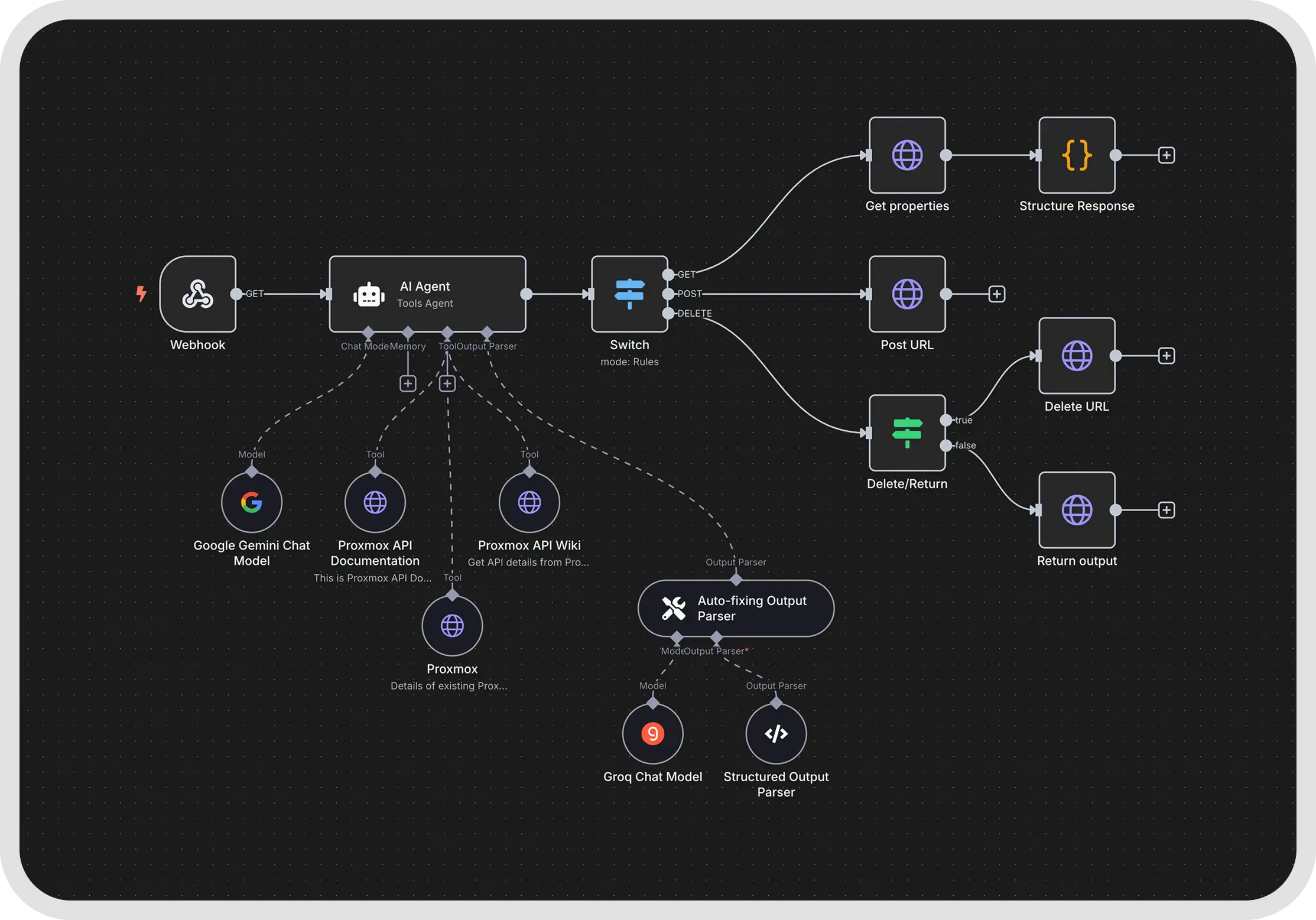
 Skills Business Automation in Kenya: How to Build Smart Systems Using n8n, APIs and AI
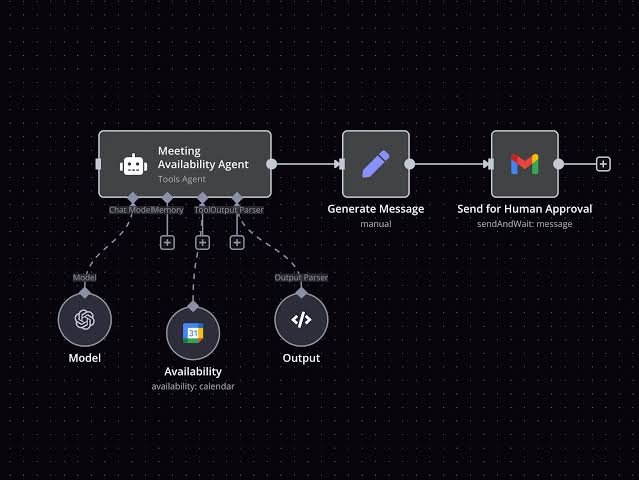
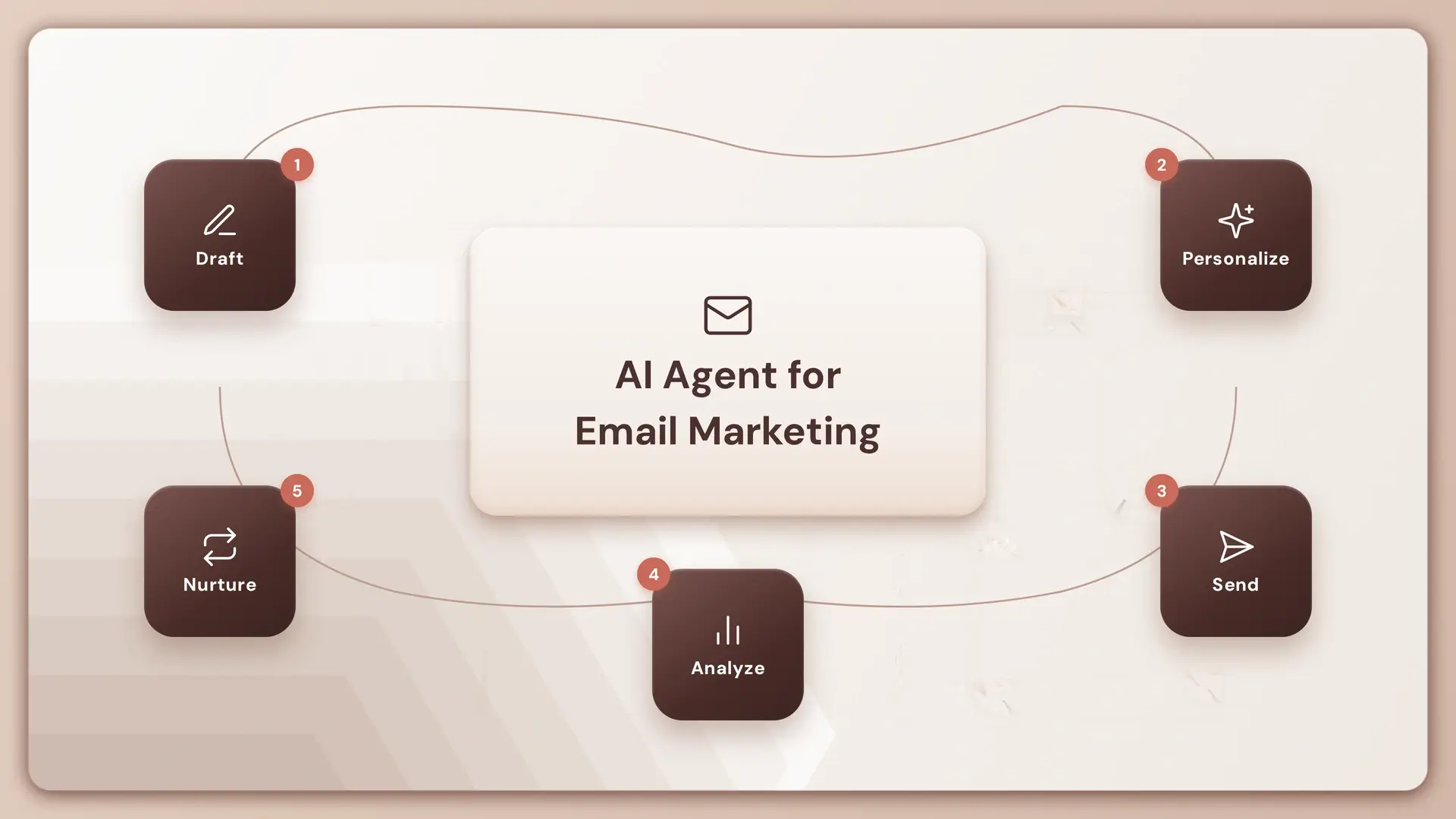 Skills AI Agents for Business Automation: Automate Emails, Slack Messages and Daily Tasks
 Skills JavaScript API Integration: Learn to Connect Websites, Applications and Business Systems
 Skills Python API Integration in Kenya: Learn to Connect Applications and Automate Tasks
 Skills Learn n8n Automation in Kenya: Connect Apps and Automate Business Workflows
 Skills Workflow Automation in Kenya: Understand Triggers, Actions and How Automation Works
 Skills Software Engineering Courses in Kenya: Learn Software Development at DAZU Training Institute
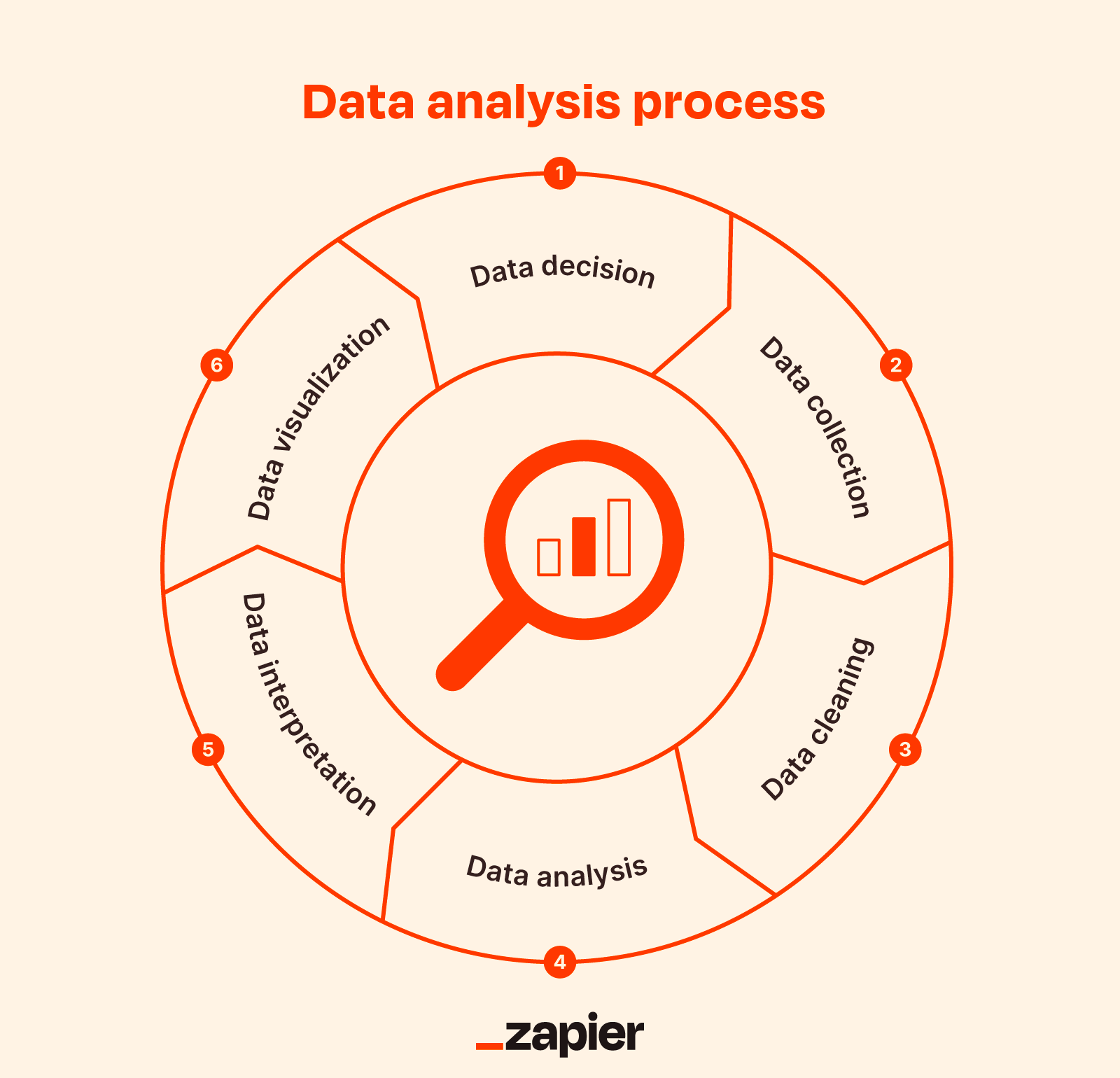 Skills Data Analysis Courses in Kenya: Learn Excel and Power BI at DAZU Training Institute
You might also like
 security What is Cybersecurity? A Complete Guide for Beginners
Nov 16, 2026
 software development Software Engineering Course in Thika: Build Real Skills, Real Projects, Real Career Opportunities
Nov 13, 2026
 beauty el Nails, Acrylic Nails and Nail Art: Which Skills Should You Learn?
Nov 13, 2026
 beauty Beauty Skills You Can Learn and Turn Into a Profitable Business in Kenya
Nov 13, 2026
 beauty Manicure and Pedicure Course in Kenya: Everything You Need to Know
Nov 13, 2026
 beauty : How to Become a Professional Nail Technician in Kenya
Nov 13, 2026